Palette cleanup
Clean up pixel art palettes before export.
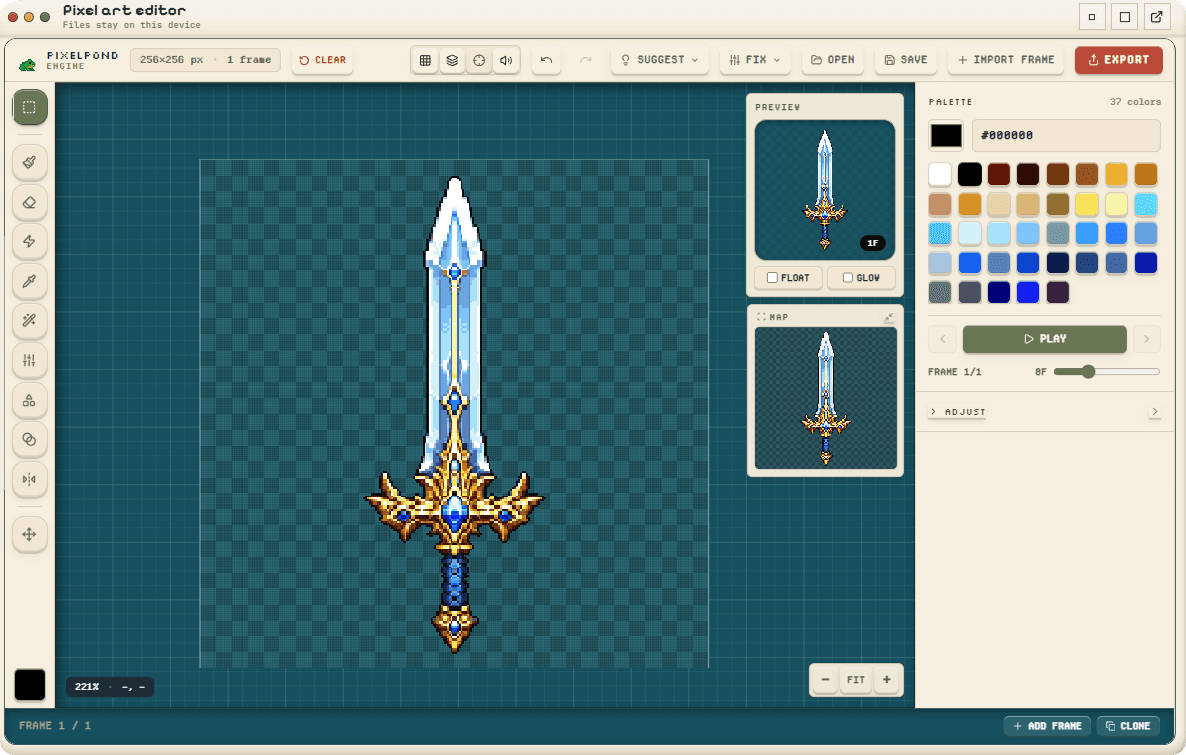
Reduce color drift, remove stray pixels, defringe soft edges, and lock a small palette so sprites, tiles, and UI exports stay consistent.
Use it when AI output, resized art, or cut-out sprites carry accidental colors that make the asset look noisy.
Exports
- Cleaned PNG asset
- Locked palette
- Palette text export inside ZIP packs
- Validated sprite, tile, or UI export
Validation checks
- Near-duplicate colors
- Off-palette frames
- Stray pixels and alpha fringe
- Target palette limits
From color drift to a locked palette.
Reduce color drift, remove stray pixels, defringe soft edges, and lock a small palette so sprites, tiles, and UI exports stay consistent.
- 1
Inspect the palette
Check how many colors the source uses and where near-duplicate colors have crept in.
- 2
Merge and lock colors
Collapse accidental color drift into a smaller project palette and lock it for the asset.
- 3
Clean edges and background
Remove stray pixels, clear speckles, and defringe cut-out edges where the old background leaked in.
- 4
Check frames or tiles
For animations and sheets, validate that each frame stays inside the locked palette.
- 5
Export with notes
Download the cleaned asset with export validation notes and palette text where the pack includes it.